Figma MCP for Coding Agents: When Design Context Changes the Output
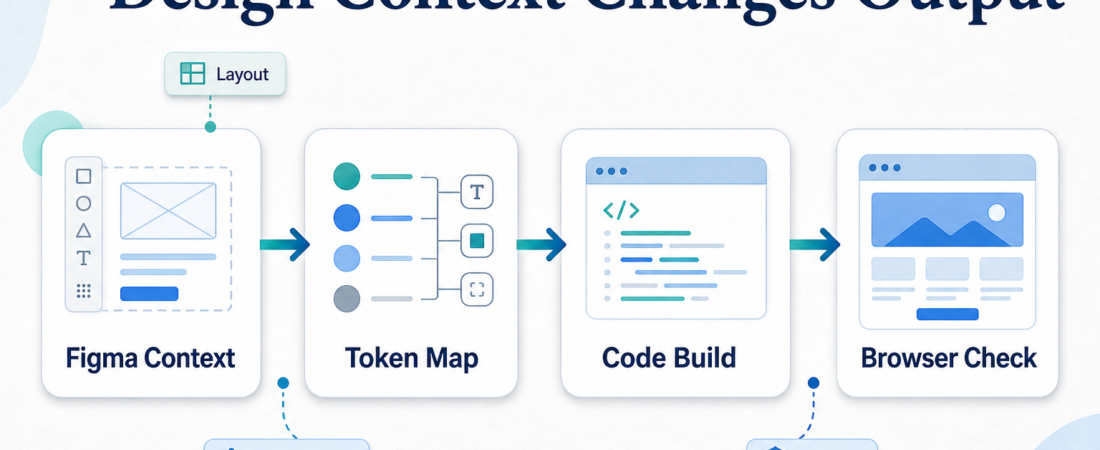
Design context changes coding-agent output when it gives the agent concrete layout, token, and component evidence before code is written. Figma MCP should not be treated as a magic design-to-code button. It is most useful as a handoff layer: inspect the design, extract the parts that matter, implement narrowly, and then verify the result in a real browser.
| Handoff layer | What the agent should read | Review checkpoint |
|---|---|---|
| Layout | Frames, spacing, hierarchy, responsive intent | Does the page preserve the main visual order? |
| Tokens | Colors, type scale, radii, shadows, component states | Are local design-system values reused? |
| Verification | Screenshots, browser checks, accessibility notes | Does the implementation match intent in-browser? |
In Short
- Use Figma MCP when the coding agent needs real design context: frame structure, spacing, tokens, component names, and intended states.
- Do not ask the agent to copy a screenshot blindly. Ask it to inspect the design, map it to the codebase, and preserve the local component system.
- Pair Figma context with browser verification. A design-aware implementation still needs screenshot checks, responsive review, and accessibility inspection.
- Start with a narrow surface, such as one modal, settings panel, dashboard card, or landing section, before letting the agent touch a full page.
Who this is for
This guide is for frontend engineers, design engineers, FDE teams, and agency operators who already use coding agents but still spend too much time translating mockups into implementation details. The common failure mode is not that the agent cannot write React, CSS, or Tailwind. It is that the agent lacks the design evidence a human engineer would naturally inspect before making decisions.
A Figma-connected workflow helps when the question is concrete: how wide is this panel, what spacing rhythm does the design use, which variant is active, what should happen on hover, and which pieces belong to the existing component library? ASE already has design-adjacent skills for asset export, token extraction, token export, and export automation. Those are useful signals for the kind of work a Figma MCP skill should support: structured design context, not image guessing.
Starter workflow
Start by naming the implementation surface. “Build the billing settings page from this Figma file” is often too broad. “Update the plan comparison cards to match the selected desktop frame, reusing the existing Card, Button, and Badge components” is easier to review and less likely to create unrelated churn.
Next, ask the agent to inspect the Figma frame before editing code. The useful output is a short implementation note: layout structure, component mapping, spacing values, typography choices, states, and open questions. This is where Figma context changes the output. The agent can see that a designer used a tighter table density, a secondary button state, or a two-column responsive breakpoint instead of inventing a generic layout.
Then map the design to the codebase. The agent should identify existing components, theme tokens, CSS variables, utility classes, and icon libraries. If the repo already has a design system, Figma should inform the implementation without replacing local conventions. The Frontend Design Guidance Skill is a good companion here because it reinforces layout discipline, responsive constraints, and professional UI states.
After implementation, verify in a browser. Use a deterministic browser skill for page inspection, screenshots, form checks, and responsive passes. If the workflow needs AI-assisted browser actions against a less predictable client site, Stagehand Browser Automation SDK can fit later in the review path. The important rule is simple: Figma tells the agent what the interface should become; the browser proves what actually shipped.
Recommended ASE skills
| Skill | Use it for | Operator note |
|---|---|---|
| Figma REST API Asset Exporter | Pulling design assets and frame data into an implementation workflow. | Useful when the agent needs structured source material instead of screenshots. |
| Figma Design Token Extractor | Reading colors, spacing, type, and reusable design values. | Best when token drift is the main source of UI mismatch. |
| Figma Design Token Exporter | Moving design-token evidence toward code review. | Keep exported values reviewable before merging them into a theme. |
| Figma Export Automator | Exporting assets from repeatable design handoffs. | Good for icons and media assets; do not use exports as a substitute for layout reasoning. |
| Microsoft Playwright MCP | Checking the implemented page in a browser. | Use after coding to capture screenshots, inspect state, and test responsive behavior. |
What to watch
The first risk is fake precision. A design-connected agent may quote exact pixel values while missing why the design uses them. Ask for intent as well as measurement: hierarchy, grouping, density, and interaction state. Pixel values matter, but they should serve the component system.
The second risk is asset dumping. If an agent turns a Figma frame into a pile of exported images, the result is usually hard to maintain and poor for accessibility. Prefer semantic HTML, reusable components, and tokens. Export assets only when the design contains real images, icons, or illustrations that belong in the product.
The third risk is skipping human review. Figma MCP can reduce translation loss, but it cannot decide whether a design is product-ready, accessible, or consistent with an unstated brand rule. Keep a human checkpoint before large UI changes, especially for client work, checkout flows, pricing pages, and onboarding screens.
Finally, keep the work connected to the broader ASE discovery flow. If you are unsure which design or browser skill fits the job, start from Browse Skills or the ASE blog and choose by workflow: design context first, implementation second, verification third.
FAQ
Is Figma MCP enough to generate production-ready UI?
No. It can provide design context, but production readiness still depends on codebase fit, accessibility, responsive behavior, tests, and review.
Should the agent copy every Figma value exactly?
Usually not. Exact values help when they map to existing tokens. If the codebase already has a spacing scale or theme variable, the agent should translate the design into that system.
When should I use browser automation with this workflow?
Use browser automation after implementation. Figma context explains intent; browser checks confirm the real rendered page, interaction states, and mobile behavior.
What is the smallest useful pilot?
Pick one contained surface: a modal, form, pricing card, sidebar, or dashboard section. Ask the agent to inspect Figma, implement, capture a screenshot, and summarize differences for review.