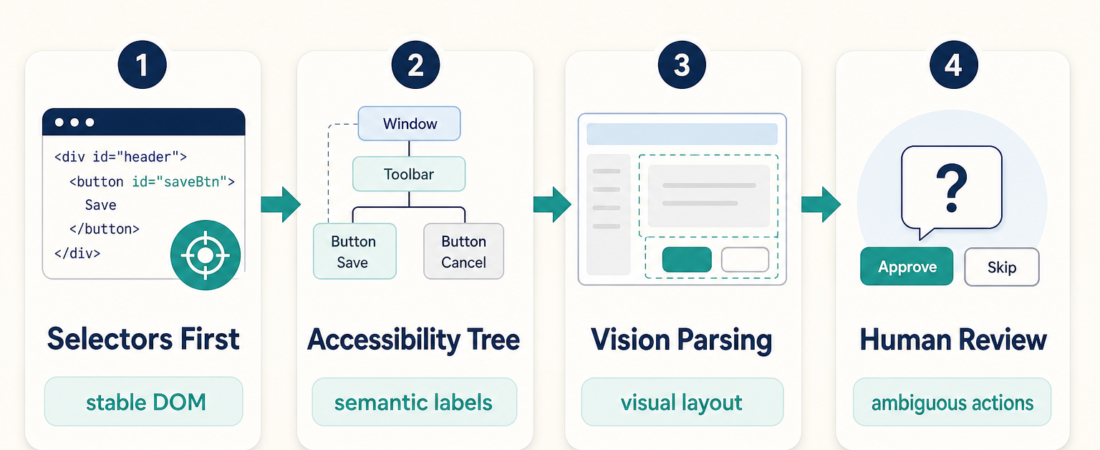
OmniParser for GUI Understanding: When Vision Beats Selectors
Most GUI automation should start with boring primitives: selectors, accessibility roles, stable test IDs, and API checks. That is still the cheapest way to make an agent click the right thing twice. OmniParser becomes interesting when those primitives are missing, misleading, or unavailable: remote desktops, legacy apps, canvas-heavy interfaces, mobile screenshots, virtualized tables, and third-party pages where the visual layout carries more truth than the DOM.
| Route | Use when | Evidence to keep | Stop condition |
|---|---|---|---|
| Selectors first | DOM, test IDs, or stable labels exist | Locator, expected state, trace | Selector targets drift |
| Accessibility tree | Roles and names match user-visible controls | Role/name snapshot | Labels are absent or duplicated |
| Vision parsing | Visual layout is clearer than markup | Screenshot, bounding boxes, chosen action | Ambiguous target or high-risk action |
| Human review | The action changes money, access, records, or customer data | Screenshot plus proposed click | Reviewer approves or rejects |
In Short
- Use OmniParser when an agent must understand a GUI from pixels, not when regular selectors already work.
- For browser QA, keep Playwright MCP Browser Automation or Microsoft Playwright MCP as the first path because deterministic checks are easier to debug.
- Use visual parsing as a fallback for apps with weak markup, remote desktops, screenshots, canvas surfaces, or UI states the DOM does not expose cleanly.
- Require screenshots, bounding boxes, and a proposed action before allowing an agent to click anything consequential.
Who This Is For
This guide is for operators building supervised browser or desktop workflows: AI agency teams, forward deployed engineers, QA engineers, and automation consultants working inside client tools they do not fully control. It fits the AI Agency Operations and FDE workflow pattern: understand the surface, automate only the stable parts, and preserve enough evidence for review.
It is not a case for replacing selectors everywhere. If your target app has stable IDs, semantic roles, clear URL states, or a reliable API, start there. Vision-based GUI parsing is useful because the real world is messy, not because pixels are inherently better than structure.
Starter Workflow
A safe OmniParser workflow starts with a screenshot and ends with a reviewed action plan. The agent should not simply say “I see the button” and proceed. It should identify candidate regions, explain the intended action, compare that action with the task goal, and keep a screenshot artifact for later debugging.
For a client onboarding workflow, the path might look like this: use selectors for login and navigation, use the accessibility tree for named form controls, use OmniParser when a legacy embedded panel has visual-only controls, then pause before saving a customer record. The important design choice is that visual parsing is one route in the workflow, not the whole automation strategy.
If the task is web-native and repeatable, pair OmniParser with browser skills rather than treating it as a standalone answer. Stagehand Browser Automation SDK can help with AI-assisted browser actions, Skyvern AI Browser Workflow Automation fits longer web workflows, and Browserbase MCP Server can provide managed browser sessions. OmniParser’s role is different: it helps the agent reason over the visible layout when structural handles are weak.
When Vision Beats Selectors
Vision beats selectors when the selector is technically present but operationally useless. A generated class name that changes on every deploy is not a stable contract. A canvas chart with clickable regions may expose one generic element while the actual work happens in the rendered image. A remote desktop session may have no DOM at all. A mobile app screenshot may show a clear “Approve” button while the automation layer only sees coordinates.
OmniParser is useful in those cases because it can turn a screenshot into higher-level UI elements: buttons, panels, text regions, icons, and likely action targets. That gives the agent a vocabulary for the screen. Instead of clicking raw coordinates blindly, it can say: “The likely Submit button is in the lower-right card, with this bounding box, after the invoice total field.” That is not perfect, but it is much easier to review than an unexplained click.
The tradeoff is reliability. Visual models can misread labels, confuse similar controls, or overfit to one screenshot size. That is why the workflow should record the parsed regions and require a confidence boundary. If two targets look similar, the right answer is not a bolder click. The right answer is to ask for review or route back to a deterministic check.
Recommended ASE Skills
| Skill | Best fit | Pairing note |
|---|---|---|
| OmniParser for Vision-Based GUI Parsing | Screenshot-based GUI understanding | Use when selectors, roles, or APIs do not expose the visible task clearly. |
| Playwright MCP Browser Automation | Repeatable browser actions and verification | Use first for stable web flows; escalate to vision only for weak surfaces. |
| Microsoft Playwright MCP | MCP-hosted browser control | Useful when agents need browser state, traces, and deterministic navigation. |
| Stagehand Browser Automation SDK | AI-assisted browser tasks | Good for mixed natural-language and selector-driven browser workflows. |
| Skyvern AI Browser Workflow Automation | Longer browser workflow automation | Best when the task spans multiple pages and needs workflow memory. |
| Browserbase MCP Server | Managed browser sessions for agents | Useful when teams need hosted browser infrastructure around the workflow. |
What To Watch
First, watch for false confidence. A visual parser can produce neat boxes around the wrong target. Keep the screenshot, the selected box, and the intended action together so a reviewer can spot mistakes quickly.
Second, separate reading from acting. It is reasonable to let an agent parse a screenshot, summarize the visible controls, and propose the next step. It is a different risk profile to let it submit forms, change billing settings, approve users, or update customer records. For those actions, require a review handoff.
Third, do not use visual parsing to hide poor instrumentation in systems you own. If your team controls the app, add stable selectors, semantic labels, and test-friendly states. Vision fallback is valuable for third-party and legacy surfaces. It should not become an excuse to keep first-party UI inaccessible or untestable.
For external references, start with the OmniParser project on GitHub, the Playwright documentation, and the Model Context Protocol documentation if you are wiring browser skills into an MCP host.
FAQ
Should OmniParser replace Playwright selectors?
No. Use selectors, roles, and API checks first when they are available. OmniParser is most useful when the GUI is visible but not structurally exposed in a reliable way.
Can an agent click based only on OmniParser output?
For low-risk exploratory tasks, sometimes. For actions that change records, permissions, money, or customer-facing state, require a screenshot-backed proposal and human approval.
Where does this fit in an agency delivery stack?
Use it as the visual understanding layer inside a broader stack: deterministic browser automation for stable flows, managed sessions where needed, visual parsing for weak UI surfaces, and release checks before handing the workflow to a client.
What evidence should the workflow save?
Save the original screenshot, parsed regions or bounding boxes, the chosen target, the intended action, and the result after the action. That evidence makes visual automation reviewable instead of mysterious.